

Table of Contents
- What Is the ESL Display 2.13 ULP Paper Signage Screen?
- Understanding Electronic Shelf Labels and Their Benefits
- The 2.13-Inch E-Paper Display: Specifications and Capabilities
- How to Install Your ESL Display 2.13 ULP Paper Signage Screen
- Configuring Your E-Paper Price Tag for Retail Use
- Common Installation Issues and How to Resolve Them
- Maintaining and Troubleshooting Your ESL Display 2.13
- Frequently Asked Questions
Last Updated: October 10, 2026
What Is the ESL Display 2.13 ULP Paper Signage Screen?
An ESL Display 2.13 ULP Paper Signage Screen is a compact electronic shelf label designed to replace traditional printed price tags in retail environments. This 2.13-inch e-paper display uses ultra-low power technology, meaning it consumes minimal energy and requires infrequent battery replacements. Retailers use these devices to update pricing instantly across their stores without manually changing thousands of paper labels.
At Store Fittings Direct, we understand that modern retailers need tools that save time and reduce operational costs. The ESL display 2.13 is one such tool. It connects to your store's management system and updates prices in real time. This eliminates pricing errors and helps you respond quickly to market changes or promotional campaigns.
The device displays clear, easy-to-read text and numbers on a white background with black ink. It's durable enough for daily retail use and works reliably in most store conditions.
Understanding Electronic Shelf Labels and Their Benefits
Electronic shelf labels represent a shift away from labour-intensive manual pricing. Rather than printing new tags and walking the shop floor with a stapler, your team updates prices through a central system.
Here's why retailers choose electronic shelf label systems:
- Speed: Update 100 prices in minutes instead of hours
- Accuracy: Eliminate typos and pricing mistakes
- Flexibility: Change prices instantly during promotions
- Data tracking: Monitor which prices drive sales
- Professional appearance: Clean, consistent labelling across all products
The ESL display 2.13 fits this category perfectly. It's small enough to attach to standard shelf edges. The ultra-low power design means you won't spend time replacing batteries constantly.
The 2.13-Inch E-Paper Display: Specifications and Capabilities
The 2.13-inch size strikes a balance between readability and space efficiency. It's large enough to display price, product name, and promotional text clearly. Yet it doesn't take up much shelf space, so customers can still see the product itself.
Key specifications for this display type include:
- Screen size: 2.13 inches diagonal
- Resolution: Typically 250 x 122 pixels
- Colours: Black and white (high contrast)
- Update speed: 2-4 seconds per refresh
- Battery life: Months to years depending on update frequency
- Wireless connectivity: Usually via 2.4 GHz or proprietary network
- Operating temperature: 0°C to 40°C (suitable for most retail environments)
The e-paper technology means the display only uses power when updating the screen. Once the price appears, the label holds that image without draining the battery. This is why these devices last so long compared to traditional LCD screens.
How to Install Your ESL Display 2.13 ULP Paper Signage Screen
Before You Begin: What You'll Need
Gather these items before starting your installation:
- ESL Display 2.13 units (one per price point)
- Mounting brackets or adhesive backing (included with most units)
- Base station or gateway (connects displays to your system)
- Ethernet cable or Wi-Fi connection
- Management software or app
- Small screwdriver (if using bracket mounts)
- Batteries (if not pre-installed)
Check that your base station is compatible with the display model you're installing. Most modern ESL systems work with standard retail networks, but confirm this with your supplier first.
Step-by-Step Installation Process
Step 1: Set up the base station. Place the gateway or base station in a central location on your shop floor. This device communicates between your price management system and the individual displays. Mount it on a wall or shelf where it has a clear line of sight to most of the shop. Plug it into power and connect it to your network via Ethernet or WiFi.
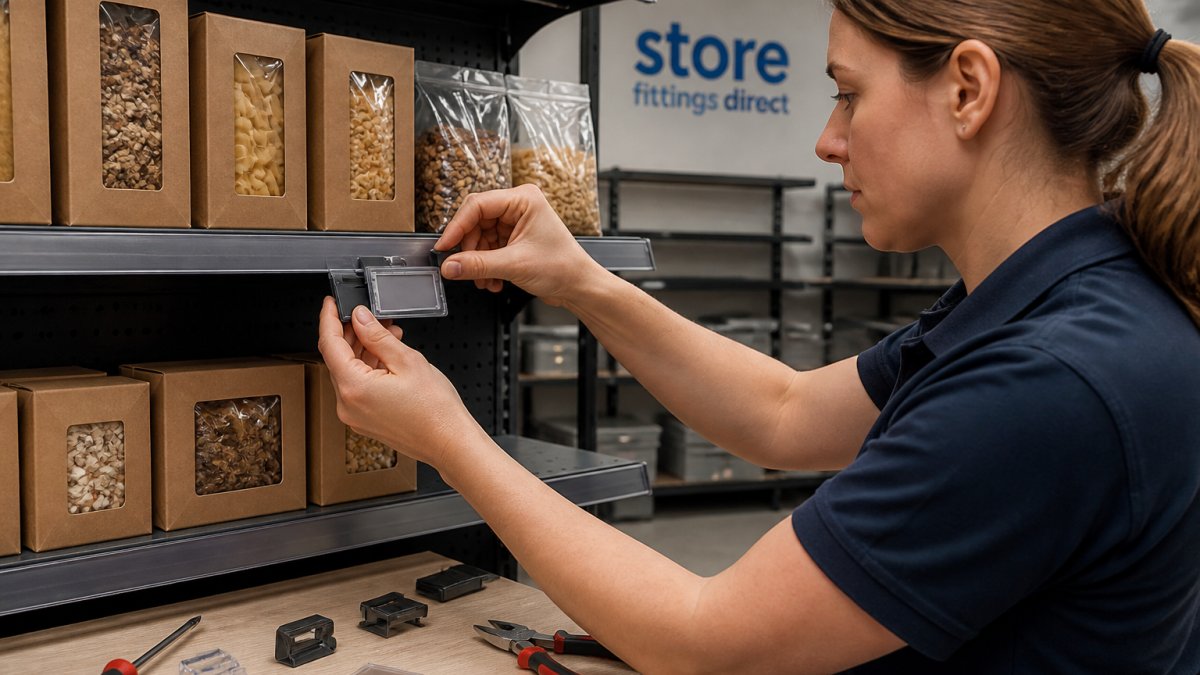
Step 2: Prepare the shelf edge. Clean the area where you'll attach the display. Use a dry cloth to remove dust and debris. This ensures the adhesive or bracket sits flush against the shelf.
Step 3: Mount the display. If using adhesive backing, peel the protective layer and press the display firmly onto the shelf edge. Hold it in place for 10-15 seconds. If using a bracket, align the bracket with the mounting holes and secure with the provided screws. Make sure the display faces forward so customers can read the price clearly.
Step 4: Install batteries. If batteries aren't pre-installed, insert them into the compartment on the back of the display. Check the polarity markings inside the battery slot. Close the cover firmly.
Step 5: Pair the display with the base station. Most ESL systems use a pairing process. Press the pairing button on the back of the display (usually a small button or switch). The base station should detect the new device within 30 seconds. Check your management software to confirm the display appears in your network.
Step 6: Upload price data. Log into your management software. Import your product list with prices. Assign each display to the correct product. Send the update command. The displays should refresh within a few seconds, showing the correct prices.
Step 7: Test the display. Walk around the shop and verify that all prices display correctly. Check that text is readable from a normal shopping distance. Confirm that the display is securely mounted and won't fall or shift.
Configuring Your E-Paper Price Tag for Retail Use
Once your displays are installed and paired, you'll configure them through your management software. Most systems allow you to customise what information appears on each label.
Typical configuration options include:
- Product name: One or two lines of text
- Price: Large, bold numbers
- Unit price: Smaller text showing price per kilogram or litre
- Promotional badges: "Sale," "New," or "Offer" icons
- Barcode: QR code or standard barcode for scanning
Start with a simple layout: product name, price, and unit price. This covers most retail needs. You can add promotional badges later for specific campaigns.
Test your configuration on a few displays before rolling out across the entire shop. Make sure text is large enough to read from three metres away. Confirm that the most important information (price) is the most prominent element.
Common Installation Issues and How to Resolve Them
Display won't pair with the base station. Check that the base station has power and is connected to your network. Verify that the display battery is installed correctly. Move the display closer to the base station temporarily. Try the pairing process again. If it still fails, restart both devices and try once more.
Price updates are slow or delayed. Confirm that your base station has a strong network connection. Check for interference from other wireless devices. Reduce the number of displays updating simultaneously. Contact your software provider if delays persist.
Display shows garbled text or symbols. This usually means the display received corrupted data. Restart the display by removing and reinstalling the battery. Re-upload the price data from your management software. If the problem continues, the display may be faulty and need replacement.
Adhesive backing won't stick. Clean the shelf edge more thoroughly with a damp cloth and let it dry completely. Use a stronger adhesive if provided, or switch to bracket mounting. Ensure the shelf surface is smooth and free from paint chips or rough spots.
Battery drains too quickly. Excessive updates drain power faster. Reduce the update frequency if you don't need real-time pricing. Check that the display isn't in direct sunlight, which can affect battery performance. Replace the battery if it's old or damaged.
Maintaining and Troubleshooting Your ESL Display 2.13
Regular maintenance keeps your displays working reliably for years.
Monthly tasks:
- Check that all displays are secure and haven't shifted
- Verify that prices match your current inventory system
- Clean the display screen gently with a soft, dry cloth
- Look for any physical damage to the casing or bracket
Quarterly tasks:
- Test a sample of displays to confirm they're updating correctly
- Review battery levels in your management software
- Check that the base station is still properly connected to your network
Annual tasks:
- Replace batteries in displays showing low power
- Update your management software if new versions are available
- Audit your entire display network to identify any faulty units
Most ESL displays require minimal troubleshooting once properly installed. The ultra-low power design means they run quietly in the background. You'll mainly notice them when you're updating prices or replacing batteries.
Installing an ESL Display 2.13 ULP Paper Signage Screen transforms how your team manages pricing. The process is straightforward, and once set up, these displays save hours of labour each week. Store Fittings Direct supplies the ESL Display 2.13 ULP Paper Signage Screen designed for UK retail environments. Our product includes mounting hardware and clear setup instructions. Get started with Store Fittings Direct and simplify your retail pricing today.
Frequently Asked Questions
What is an ESL paper signage screen?
An ESL (electronic shelf label) paper signage screen is a digital display that replaces traditional printed price tags on retail shelves. The ESL Display 2.13 ULP uses e-paper technology to show product information, pricing, and promotions. E-paper displays consume minimal power and remain visible even without an active power source, making them ideal for retail environments where frequent price updates are necessary.
What does ULP mean on the ESL Display 2.13?
ULP stands for Ultra-Low Power. This feature significantly reduces energy consumption compared to standard electronic displays. The 2.13-inch e-paper display technology means the screen only uses power when updating information, not continuously like traditional LCD or LED screens. This makes the ESL Display 2.13 ULP cost-effective to operate across multiple retail locations.
Can an e-paper price tag display more than just prices?
Yes. Beyond pricing, your e-paper price tag can display product descriptions, promotional messages, stock status, barcodes, and compliance information. The 2.13-inch e-paper display provides sufficient screen space for essential retail information. However, the display is monochrome, so colour-dependent promotions will need alternative approaches.
How often can I update information on the ESL Display 2.13?
Updates depend on your system configuration and network connectivity. Most electronic shelf label systems support daily or multiple-times-daily updates when connected to your retail management software. The ESL Display 2.13 ULP processes updates quickly, though the actual refresh speed varies based on your backend system's capabilities and the volume of labels being updated simultaneously.


